START HERE · MATCH YOUR PLAYER VERSION
Which player is installed on your box?
Formuler generations use different menus. Choose the version already installed on your model; do not follow a different version's screenshots.
MYTVOnline 2 Formuler Z10 · GTV · CC
1. Open Menu → Connections. 2. Add a connection and choose XC / Xtream Codes if your IPTV Door activation gives a server URL, username and password; choose M3U only if you received a playlist URL. 3. Enter the details exactly as supplied, save and connect. The screenshots below illustrate an older menu style.
MYTVOnline 3 Formuler Z11 family
1. Open Menu → Content Manager → Content Sources. 2. Add a source and select the connection type supplied with your activation (normally XC when you have a server URL, username and password). 3. Enter your details, save and connect, then follow the app's group-selection setup if shown. The older Connections screenshots below are not MYTVOnline 3 screens.
MYTVOnline 4 Formuler Z12 family
1. On your Z12, open
Menu → Settings → App Settings → Content Sources.
2. Choose
Add and select the connection type supplied with your activation. For
XC / Xtream Codes, enter the server/portal URL (including any port), enable login if prompted, and enter your username and password. For
M3U, paste the complete playlist URL instead.
3. Save or connect; if the list does not load, select the source and choose
Refresh Content.
4. Test one channel and the programme guide. This is for supported Z12 devices; the beta screenshot further down is a menu reference, not a verified final-release login screen.
Official setup instructions ↗ ·
Official refresh instructions ↗.
Dreamlink / DOL2 Dreamlink models
For Dreamlink T1/T1+ with the legacy DreamOnline (DOL2) player, open My Apps → DreamOnline → Service → Settings → Edit and then Edit Service if shown. This is not MYTVOnline 3 or 4. A MAC-based service requires a compatible portal URL activated for the correct device; ask IPTV Door Support to confirm your model and activation method before entering any account details. Other Dreamlink versions may use different menus.
Formuler can support Xtream Codes, M3U or compatible MAC-ID portal methods. Use only the login format confirmed in your IPTV Door activation details. Formuler official connection guide ↗ · MYTVOnline 3 illustrated XC example ↗ · MYTVOnline 4 refresh guide ↗
MYTVOnline 2 · 3 · 4
DOL2 App
Compatibility: Check your exact Formuler or Dreamlink model and installed player version. These screenshots show an older menu layout; MYTVOnline 3 and 4 use the different version-specific paths listed above. Do not follow mismatched screenshots.
Formuler: MYTVOnline Setup (Check Your Version)
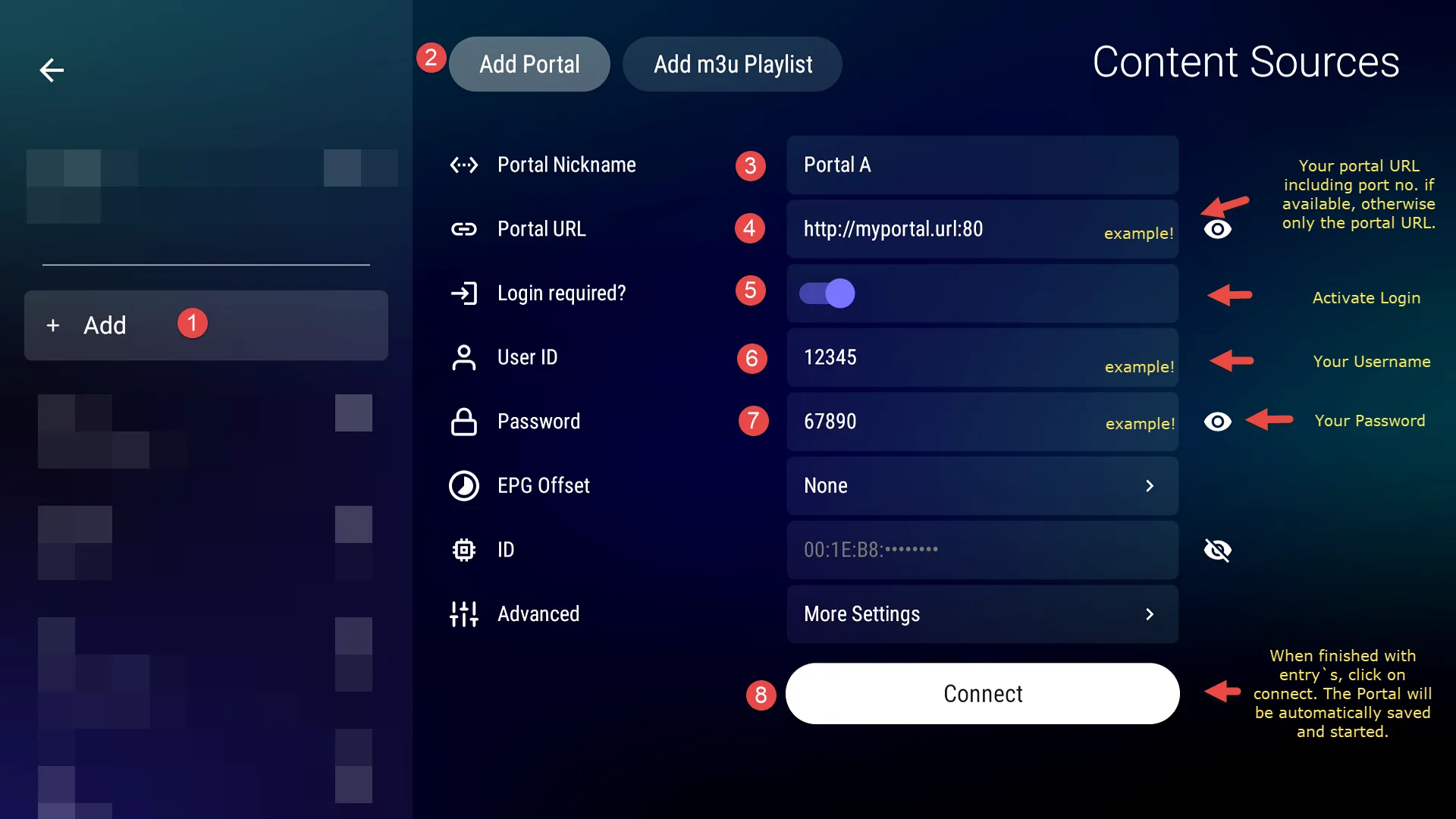
Match the version first: The screenshot in the credential-entry step below is an actual MYTVOnline 3 XC example. Screenshots later in this guide show older Formuler/Dreamlink menus. They are not MYTVOnline 4 screens. For MYTVOnline 4, use its version-specific menu path above.
MYTVOnline 3 example: enter the server URL and account details exactly as supplied, then choose Connect. Screenshot source: Formuler Support Forum ↗. Not applicable to MYTVOnline 4.
MYTVOnline 4 — Content Sources menu (Z12, beta reference)
Historical MYTVOnline 4 beta screenshot: This genuine Formuler Z12 example identifies App Settings → Content Sources, not the final Xtream login form. The stable MYTVOnline 4 was released on 31 August 2026; the final-release interface may differ from the earlier beta image. If your Z12 has not been updated, open its Software Update app, check the official update details and choose Start Download. MYTVOnline 4 is for supported Z12-series devices, not Z11 or Z10. Formuler's official 2026 release announcement ↗ · Current XC / M3U / MAC setup guide ↗ · Beta screenshot source ↗.
-
Open the MYTVOnline version installed on your Formuler model from the home screen
-
Open the connection menu for your MYTVOnline version using the version guide above. The older MYTVOnline 2 path is Menu → Connections.
-
Configure your Xtream Codes connection:
• Portal Name: Enter any name (e.g., "My IPTV")
• Portal URL: Enter your server URL from your IPTV Door activation message
• Login Required: Enable this option
• Username: Enter your IPTV username
• Password: Enter your IPTV password
MYTVOnline 3 reference only. MYTVOnline 2 and 4 have different menus; match your installed version using the guide above.
-
Press "Connect" to establish the connection
-
Your channels should now load and you're ready to watch!
Dreamlink T1 / T1+ — DreamOnline (DOL2) Setup
-
From your Dreamlink T1/T1+ home screen, open My Apps → DreamOnline (DOL2). If DreamOnline is missing, look for it in your device's Market or app list. This legacy example is for DOL2, not MYTVOnline 3 or 4.
-
In DreamOnline (DOL2), open the Service screen. Note the MAC address shown by the app and confirm with IPTV Door Support whether your subscription has been activated for MAC-based portal access. Open Settings → Edit, then press OK on your remote to reach Edit Service. Labels may differ by model.
-
For the legacy DOL2 MAC-based portal method shown in this screenshot, enter:
• Service Nickname: A name you choose
• Service / Portal URL: The MAC-compatible portal URL provided for your activated device (not an arbitrary Xtream server link)
• Certificate: Leave unchecked in this legacy example
• User ID: Leave blank for this MAC-based DOL2 example
• User Password: Leave blank for this MAC-based DOL2 example
Important: If IPTV Door sent you an Xtream Codes URL, username and password instead, ask Support for the correct compatible activation method rather than following this MAC-only example.
Dreamlink T1/T1+ · DOL2 Edit Service field guide (text reference, not a screenshot):
For MAC-based portal activation, use the MAC-compatible Service URL confirmed by IPTV Door Support. Choose your own Service Nickname, keep Certificate unchecked for this legacy example, and leave User ID and User Password blank. This older DOL2 screen is not a MYTVOnline 3 or 4 interface. Confirm your exact device model before applying these steps.
-
Press OK to save your service settings, then use the red button → Connect Service in DOL2 as shown in the legacy guide. If it does not connect, confirm MAC registration and the portal URL with Support before changing your credentials.
Important: Depending on your exact Formuler or Dreamlink model and subscription, you may use Xtream Codes, M3U, or a compatible MAC-ID portal. Use only the activation details provided by IPTV Door.
Example Configuration:
Server / portal URL: supplied in your IPTV Door activation message
Username: your account username
Password: your private account password
Frequently Asked Questions
What's the difference between MyTVOnline 1 and 2?
▸
MYTVOnline 2, 3 and 4 are intended for different Formuler models. Use the player version included with your device and check the manufacturer's official instructions.
Do I need to register MAC address for Formuler?
▸
Not necessarily. Formuler supports several connection types depending on model, app version and provider: Xtream Codes, M3U and compatible MAC-ID portal setups. Follow your IPTV Door activation method.
Why won't my channels load?
▸
Check that "Login Required" is enabled, verify your credentials are correct, ensure stable internet connection, and try restarting the MyTVOnline app.
Can I use multiple IPTV services on Formuler?
▸
Yes, you can configure multiple portals in MyTVOnline and switch between different IPTV providers easily.

 OTT Navigator
 TiviMate
 iMPlayer


 XCIPTV






 FreeHot Player is free for the first 30 days.LicenseAfter 30 days, Hot Player needs its own license.Not part of your IPTV Door subscription. Your subscription stays active either way.